

DICOM Calibration Software | Unlock the Full Potential of Your Medical Display
In modern medical imaging, precision is everything. That’s where DICOM calibration software comes in. Radiologists and technicians rely on diagnostic displays that render medical images with absolute accuracy. Even the slightest deviation in grayscale reproduction or brightness can impact interpretation—and by extension—patient outcomes.
The DICOM calibration software is designed to ensure that diagnostic monitors meet DICOM Part 14 standards, this technology is essential for accurate, consistent, and reliable image presentation in radiology, telemedicine, and other healthcare settings.
The Evolution of DICOM Calibration Software
DICOM (Digital Imaging and Communications in Medicine) defines the standards for medical imaging, including how images are stored, transmitted, and displayed. DICOM calibration software was developed to make sure displays accurately reproduce luminance and contrast so that images appear the same across all viewing stations.
What was once a time-consuming process requiring specialized hardware and technical expertise has now become more accessible than ever. Modern calibration tools—like the newly released PL4 suite from QUBYX—allow professionals to achieve perfect calibration on virtually any professional platform with speed and ease.
Why DICOM Calibration Matters
Even a premium display can underperform without proper calibration. Medical images are not just pictures—they are diagnostic tools. If the display shows an image that’s too dark, too bright, or with incorrect grayscale mapping, critical details can be missed.
Key benefits of DICOM calibration include:
-
Consistency Across Locations – Uniform image presentation in multi-hospital networks.
-
Regulatory Compliance – Meets the strict requirements of medical boards and quality standards.
-
Reduced Diagnostic Errors – Clearer images support more accurate interpretations.
-
Better Workflow Efficiency – Fewer retakes and reduced image review times.
Introducing the PL4 Calibration Suite
The PL4 DICOM calibration software is designed to unlock the full potential of your modern premium display. Built on advanced algorithms and in-depth research into display technology, PL4 delivers precision that meets the demands of today’s radiology departments.
Highlights of PL4 include:
-
Accurate DICOM Part 14 Calibration – Optimized grayscale and luminance for diagnostic imaging.
-
Display Conformance Verification – Automated acceptance and constancy tests.
-
User-Friendly Interface – Streamlined workflow for busy professionals.
-
Remote QA Capabilities – Ideal for teleradiology and multi-site networks.
-
Windows 11 Compatibility – Ready for modern healthcare IT environments.
From Installation to Compliance—Made Simple
One of the biggest advantages of PL4 is its ease of use. Whether you’re a radiology specialist or an IT administrator, the software’s intuitive design means you can achieve compliance without needing to be a calibration expert.
The process is simple:
-
Install PL4 on your workstation.
-
Follow the guided steps to measure and adjust display performance.
-
Verify compliance with automated tests.
-
Save or export reports for regulatory audits.
Learn with the PL4 YouTube Tutorial Series
To help users get the most out of our software, we’ve launched a dedicated YouTube channel featuring the PL4 Tutorial Series. These short, easy-to-follow videos guide you through everything—from your first DICOM calibration to advanced remote QA setup.
The first tutorial in the series shows exactly how to use PL4 to DICOM calibrate your monitor in just minutes, making it the perfect starting point for new users.
Watch Now: How to DICOM Calibrate Your Monitor with PL4
Remote Calibration for the Modern Radiology Workflow
With the growing adoption of teleradiology, healthcare providers need reliable tools to ensure displays remain compliant no matter where they’re located. PL4’s remote QA feature allows centralized monitoring and calibration across an entire network—ensuring every radiologist sees images exactly as intended.
This capability not only improves diagnostic consistency but also reduces the need for on-site technical visits, saving both time and cost.
Try PL4 DICOM Calibration Software for Free
We believe that once you experience PL4, you’ll see the difference immediately. That’s why we’re offering a free trial of our DICOM calibration software.
With PL4, you’ll be able to:
-
Calibrate any compatible display to DICOM Part 14 standards.
-
Verify and document compliance.
-
Manage calibration remotely for multiple workstations.
[Download PL4 Free Trial]
[Watch the PL4 Tutorial Series]
Final Thoughts
At QUBYX, our mission is simple: Calibration should be effortless, compliance should be automatic, and diagnostic confidence should be guaranteed.
The PL4 DICOM calibration software represents the latest step forward in our commitment to helping medical professionals work with the highest-quality images possible—every time, everywhere.
Read More:
PerfectLum4 Tutorial Series | Master DICOM Calibration with Ease
Medical Imaging iMac | How Color Management with PL4 Can Transform Your Display
In the world of medical imaging, precision is everything. Whether you’re a radiologist interpreting MRI scans or a technician reviewing X-rays, the accuracy of your display can mean the difference between a clear diagnosis and a missed detail. While Apple’s iMac is well-known for its stunning Retina display and advanced color accuracy, many professionals still wonder: Can it be pushed even further for medical imaging purposes?
The answer is yes — and that’s where the PL4 calibration suite comes in. This powerful software enhances your iMac’s color management to meet the strict standards of DICOM calibration, giving you the professional-grade accuracy your work demands.
Why Color Accuracy Matters in Medical Imaging
Medical imaging isn’t just about crisp pictures; it’s about ensuring that every shade of gray, every color gradient, and every pixel is correctly represented. Inaccurate color or contrast can lead to misinterpretations, especially when working with subtle details in CT scans, mammograms, or PET scans.
Apple’s iMac already offers one of the most color-accurate displays in the consumer market, but for medical compliance, it must meet DICOM Part 14 standards — a specific calibration that ensures medical images are displayed consistently and accurately across different monitors.
The PL4 Advantage: Unlocking Your iMac’s Full Potential
Have you ever bought a high-end device and felt like it had untapped potential? That’s often the case with iMacs in medical environments. While their hardware is exceptional, achieving perfect DICOM calibration requires specialized software.
The newly released PL4 calibration suite bridges that gap. Designed with advanced algorithms and backed by in-depth research into the latest display technologies, PL4 transforms your iMac into a medical-grade display tool without the need for expensive dedicated monitors.
Key Features of PL4 for Medical Imaging on iMac:
-
Full DICOM Calibration – Adjusts brightness, contrast, and gamma to meet exact medical imaging standards.
-
Color Precision – Ensures each tone and shade matches the original medical scan data.
-
Display Conformance Verification – Automatically checks and certifies that your display meets required compliance.
-
Easy-to-Use Interface – No steep learning curve; calibration is quick and straightforward.
-
Remote QA Support – Ideal for teleradiology and multi-location medical practices.
From Hospital to Home: The Remote Advantage
With the rise of teleradiology and remote medical work, ensuring your display meets the same QA standards as hospital-grade equipment is critical. PL4 offers remote calibration and quality assurance tools, so you can confidently review and interpret scans from home without compromising diagnostic accuracy.
Learn to Use PL4 with Our YouTube Tutorials
We understand that medical professionals don’t have time for complicated setups. That’s why we launched a series of short, easy-to-follow video tutorials on our new YouTube channel. These tutorials walk you through:
-
How to install PL4 on your iMac
-
How to perform your first DICOM calibration
-
How to verify ongoing display conformance
-
Tips to maintain consistent image quality over time
Whether you’re a beginner or a tech-savvy professional, these videos make it simple to unlock your iMac’s full potential for medical imaging.
Why Choose PL4 for Your iMac?
-
Regulatory Compliance – Stay ahead of the regulators with certified DICOM compliance.
-
Cost-Effective – Upgrade your existing iMac instead of buying an expensive new medical monitor.
-
Future-Proof – Built with the latest display technology research to adapt to industry changes.
-
Trusted by Professionals – Used in radiology departments and medical imaging centers worldwide.
Get Started with PL4 Today — It’s Free to Try
If you’re ready to elevate your iMac’s medical imaging capabilities, try PL4 for free. Within minutes, you’ll see the difference — sharper details, truer colors, and full DICOM compliance.
Don’t settle for standard color accuracy when your work demands perfection. Upgrade your iMac with PL4 today and experience the next level in medical imaging color management.
Read More:
Calibration Color Medical Displays | How To Do It Right?
In medical imaging, accuracy is not just important — it’s essential. Whether reviewing X-rays, MRIs, CT scans, or mammograms, every shade and tone on your display can influence a diagnosis. This is why calibration for medical displays is a non-negotiable step for radiologists, imaging centers, and telemedicine professionals.
Many medical practitioners use premium devices like the Apple iMac for their high-resolution Retina displays and advanced color management. However, even the best consumer-grade displays need specialized DICOM calibration to meet professional medical standards. The good news? It’s now easier than ever to do it right — thanks to tools like the PL4 Calibration Suite.
Why Color Calibration Matters in Medical Imaging
Medical imaging relies heavily on precise color and grayscale representation. Even slight variations in contrast or gamma can make it difficult to spot subtle abnormalities, which could lead to delays or errors in diagnosis.
A DICOM-calibrated medical display ensures:
-
Consistent grayscale tones for accurate reading of medical scans.
-
Precise brightness and gamma levels for viewing in controlled environments.
-
Compliance with medical display standards, like DICOM Part 14.
-
Uniformity across devices, so images look identical no matter where they’re viewed.
The Hidden Potential of Your iMac
Have you ever felt that your high-end display has more to give? While Apple’s iMac Retina display is impressive, it’s not factory-tuned for the strict standards of medical imaging. That’s where the PL4 Calibration Suite comes into play.
By applying advanced color management algorithms, PL4 turns your standard iMac into a professional-grade medical display. This unlocks your iMac’s full potential, making it capable of delivering the precision that radiology demands.
Introducing the PL4 Calibration Suite
The PL4 Calibration Suite is designed to make professional display calibration:
-
Simple – User-friendly tools with intuitive workflows.
-
Accurate – Powered by advanced algorithms developed from in-depth research on display technologies.
-
Versatile – Works across different platforms and supports both medical-grade and high-end consumer monitors.
Key Features:
1- DICOM Calibration – Achieves the exact luminance curve required for medical imaging.
2- Display Conformance Verification – Checks and certifies that your display meets compliance requirements.
3- Remote QA Tools – Perfect for teleradiology professionals working outside of hospital networks.
4- Customizable Workflows – Tailor settings to your facility’s specific needs.
How to Calibrate Your Medical Display the Right Way
Calibrating your display for medical imaging involves more than adjusting brightness or contrast. Here’s the right process with PL4:
-
Install PL4 – Download and install the software on your iMac or other display device.
-
Run the DICOM Calibration Tool – PL4 will guide you step-by-step to set the correct luminance and gamma curve.
-
Verify Display Conformance – The software will automatically test and confirm your monitor meets required standards.
-
Schedule Regular QA Checks – Maintain compliance and performance over time with PL4’s automated QA scheduler.
-
Use Remote Calibration if Needed – Ideal for multi-location teams or remote radiologists.
Learn with Step-by-Step Tutorials
To make it even easier, we’ve launched a YouTube channel featuring short, easy-to-follow tutorials. These videos cover:
-
How to install and set up PL4.
-
How to DICOM-calibrate your monitor.
-
How to verify ongoing display compliance.
-
How to use PL4’s remote features for teleradiology.
From Hospitals to Home Offices
The need for accurate medical displays isn’t limited to hospitals anymore. With the rise of remote radiology, doctors and technicians are working from home more than ever. PL4 ensures that even outside hospital walls, your display meets the same quality assurance standards you’d expect in a professional imaging center.
Why Choose PL4?
-
Medical-Grade Accuracy – Meets professional standards for diagnostic imaging.
-
Cost-Effective – Upgrade your existing display instead of buying expensive dedicated monitors.
-
Easy to Use – Designed for medical professionals, not just IT experts.
-
Future-Proof – Built to adapt as display technologies evolve.
Try PL4 for Free
If you want to see the difference for yourself, PL4 is free to try. Within minutes, you’ll notice sharper details, improved grayscale consistency, and compliance-ready results.
Don’t leave your medical imaging to chance. Calibrate your display the right way — with PL4.
Read More:
Why You Should Upgrade to DICOM Calibration Software?
In the world of medical imaging, precision is not optional — it’s essential. Every detail, from grayscale shading in an X-ray to color gradients in an MRI, can influence a diagnosis. And that precision starts with your display. While high-end monitors like those on Apple’s iMac or professional-grade displays offer exceptional quality, they still need specialized DICOM calibration software to meet medical standards. If you’re working in radiology, teleradiology, or any diagnostic imaging field, upgrading to DICOM calibration software can be one of the smartest investments you make.
Why Calibration Matters
Calibration ensures your monitor displays images exactly as intended, without variations in brightness, contrast, or color that could alter interpretation. In everyday use, these differences might be negligible. In medical imaging, however, they can be critical. Use DICOM calibration software.
Here’s why proper calibration is essential:
-
Accurate Measurements – Ensures every pixel and shade reflects true scan data.
-
Compliance with Standards – Meets DICOM Part 14 guidelines required in medical diagnostics.
-
Consistency Across Devices – Guarantees the same visual interpretation whether you’re in a hospital or working remotely.
-
Reduced Risk of Diagnostic Errors – Enhances confidence in visual findings.
The Untapped Potential of Your Display
Have you ever felt that your expensive monitor has more to offer? Many professionals buy high-quality displays but never unlock their full capabilities because they don’t use medical-grade calibration tools.
That’s where the PL4 Calibration Suite steps in. Designed for both premium consumer displays and dedicated medical monitors, PL4 DICOM calibration software transforms your existing screen into a fully compliant medical imaging display.
Introducing the PL4 Calibration Suite
The newly released PL4 Calibration Suite combines advanced color management algorithms with a simple, intuitive interface. It’s the result of in-depth research into the latest display technologies, bringing professional-grade calibration within reach for all medical imaging professionals.
Key Advantages of PL4:
-
Full DICOM calibration software – Matches your display output to medical imaging standards.
-
Display Conformance Verification – Provides reports to prove compliance.
-
Versatility – Works across different platforms and devices.
-
Ease of Use – No steep learning curve — anyone can get started quickly.
-
Remote QA Tools – Perfect for teleradiology workflows.
Why Upgrade Now?
1- Stay Ahead of Compliance
Regulatory bodies are increasingly strict about image quality in diagnostics. Using DICOM calibration software ensures your display meets those requirements without the risk of failed audits.
2- Improve Diagnostic Confidence
With precise calibration, subtle differences in grayscale or color are easier to detect — and in medical imaging, those differences matter.
3- Save on Hardware Costs
Instead of buying new medical-grade displays, you can upgrade your existing monitor with PL4 DICOM calibration software, achieving the same compliance and quality for a fraction of the cost.
Learning Made Simple: PL4 Video Tutorials
To make the upgrade even easier, we’ve launched a YouTube channel with quick, step-by-step tutorials:
-
How to install and set up PL4.
-
How to perform a DICOM calibration.
-
How to verify display conformance.
-
How to use remote features for teleradiology.
These videos are short, practical, and designed to get you operational within minutes.
From Hospital Networks to Home Offices
The rise of remote work in healthcare means more radiologists and specialists are reading scans from outside the hospital. PL4’s remote calibration and QA tools make sure your display at home meets the same quality assurance standards as one inside a medical imaging center.
Try PL4 Today — Free
Upgrading to DICOM calibration software doesn’t have to be complicated or expensive. With PL4, you can:
-
Test it free before committing.
-
Calibrate quickly with an easy-to-use interface.
-
Stay compliant without costly hardware upgrades.
Don’t wait for a compliance check or a missed diagnosis to remind you about display accuracy. Upgrade to PL4 DICOM calibration software and experience the difference today.
Read More:
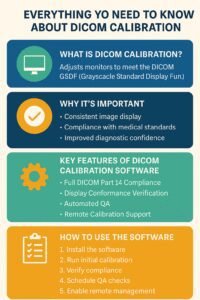
All You Need to Know About DICOM Calibration Software
In the highly demanding world of medical imaging, accuracy is critical. It is receommended that you should use DICOM calibration software, whether you’re a radiologist interpreting MRI scans, a pathologist reviewing digital slides, or a technician handling CT images, the quality and consistency of your display can directly affect diagnosis and treatment outcomes.
That’s where DICOM calibration software comes in. Designed to meet strict medical standards, this software ensures your monitor is perfectly tuned for accurate grayscale and color representation, following DICOM Part 14 guidelines.
If you’ve ever wondered what DICOM calibration software is, why it matters, and how to choose the right solution, this guide has you covered.
What is DICOM Calibration Software?
DICOM stands for Digital Imaging and Communications in Medicine, an international standard for handling, storing, and transmitting medical images. Part 14 of the DICOM standard specifically focuses on Grayscale Standard Display Function (GSDF) — the calibration curve that ensures medical images are displayed consistently across different monitors.
DICOM calibration software adjusts your display to match this GSDF curve, guaranteeing that every detail in a medical image is visible and correctly represented.
Why is DICOM Calibration Important?
In consumer settings, a small difference in brightness or color might go unnoticed. In medical diagnostics, it could mean missing a subtle lesion or misinterpreting an image. Proper calibration ensures:
-
Consistent image display across devices – What you see on your workstation matches what your colleagues see on theirs.
-
Compliance with medical imaging standards – Essential for regulatory audits and certifications.
-
Improved diagnostic confidence – Accurate grayscale levels reveal subtle details in X-rays, mammograms, CT scans, and more.
-
Reduced eye strain for radiologists – Proper calibration creates a comfortable viewing environment during long shifts.
Key Features to Look For in DICOM Calibration Software
When choosing the right solution for your medical imaging setup, consider the following features:
1- Full DICOM Part 14 Calibration
The software should match your monitor’s output precisely to the GSDF curve, ensuring compliance.
2- Display Conformance Verification
Look for tools that generate compliance reports for internal documentation or regulatory inspections.
3- Automated Quality Assurance (QA)
Automated QA ensures your display stays calibrated over time without constant manual checks.
4- Remote Calibration Support
Essential for teleradiology, allowing IT teams to calibrate and maintain displays from any location.
5- User-Friendly Interface
Calibration shouldn’t require advanced technical skills. Choose software with guided workflows and clear instructions.
The PL4 Calibration Software: A Leading Example
One standout option is the PL4 Calibration Software, which brings professional-grade calibration to both medical-grade and premium consumer displays like the iMac.
Why PL4 is trusted in the medical field:
-
Advanced algorithms based on the latest display technology research.
-
Easy setup with step-by-step guidance for new users.
-
Versatile compatibility with different platforms and devices.
-
Automated QA and remote monitoring for consistent performance.
-
Compliance verification reports to meet industry regulations.
How to Use DICOM Calibration Software Effectively
-
Install the Software – Ensure it’s compatible with your operating system and display type.
-
Run Initial Calibration – Follow the guided process to match your monitor to the GSDF curve.
-
Verify Compliance – Generate a report to confirm your display meets DICOM standards.
-
Schedule Regular QA Checks – Use automated tools to maintain calibration.
-
Enable Remote Management – Especially important for facilities with multiple locations.
From Hospitals to Home Offices
With the rise of remote work in healthcare, DICOM calibration software is no longer confined to hospital networks. Radiologists and imaging specialists working from home can now meet the same quality assurance standards as in-facility workstations. This is vital for teleradiology, where accurate and consistent imaging is key to patient safety.
The Bottom Line
Whether you’re in a major hospital, a specialized imaging center, or working remotely, DICOM calibration software is a must-have for ensuring accurate, compliant, and reliable medical imaging. It’s not just about better image quality — it’s about delivering better patient care.
If you’re ready to take your display performance to the next level, solutions like PL4 make it easier than ever. With free trials, automated tools, and remote capabilities, upgrading your workflow is straightforward, cost-effective, and future-proof.
Read More:
QUBYX Receives FDA 510(k) Clearance for PerfectLum 4
A Game-Changer for Diagnostic and Teleradiology Imaging
In a major milestone for medical imaging technology, QUBYX Software Technologies has announced that its PerfectLum 4 (PL4) calibration software has received FDA 510(k) clearance. This certification reinforces QUBYX’s commitment to delivering compliant, reliable, and high-precision display calibration for professionals in diagnostic radiology, teleradiology, and other medical imaging fields.
This clearance not only strengthens QUBYX’s presence in the competitive diagnostic market but also cements PerfectLum 4’s position as one of the most advanced medical display calibration solutions available today.
What FDA 510(k) Clearance Means for Medical Imaging
The FDA 510(k) clearance is a regulatory approval that confirms a medical device (in this case, software) is safe, effective, and substantially equivalent to legally marketed devices. For PerfectLum 4, this means:
-
It meets strict medical imaging compliance standards.
-
It is recognized as a reliable tool for diagnostic use in the U.S. market.
-
Hospitals, imaging centers, and remote radiologists can trust it to deliver consistent, accurate image displays.
In an industry where display accuracy can directly impact patient care, this level of certification is invaluable.
Why PerfectLum 4 Stands Out
PerfectLum 4 has always been designed with one goal in mind — to help medical imaging professionals achieve perfect DICOM calibration and maintain display conformance effortlessly. The latest release builds on QUBYX’s years of research and innovation, offering a set of powerful yet easy-to-use features.
Key Benefits of PerfectLum 4:
-
Full DICOM Part 14 Calibration – Ensures every pixel matches the grayscale standard required for medical imaging.
-
Display Conformance Verification – Produces compliance reports for audits and internal quality checks.
-
Automated Quality Assurance (QA) – Keeps displays calibrated without constant manual intervention.
-
Remote Calibration Support – Ideal for teleradiology professionals working from multiple locations.
-
User-Friendly Interface – Streamlined workflows make it accessible to both IT specialists and medical staff.
Unlocking the Full Potential of Modern Displays
Many hospitals and diagnostic centers invest in premium monitors, including high-end iMacs and medical-grade displays. However, even top-tier displays require medical-specific calibration to meet DICOM standards. PerfectLum 4 bridges that gap, transforming standard displays into fully compliant diagnostic tools.
Have you ever felt your monitor had untapped potential? With PL4, you can unlock that capability, delivering sharper details, improved grayscale accuracy, and consistent results — whether you’re reading mammograms, CT scans, or MRIs.

PerfectLum 4 in the Age of Teleradiology
The shift toward remote medical work has made display consistency more important than ever. In teleradiology, radiologists may be reading from home, satellite offices, or even while traveling. PerfectLum’s remote QA features ensure displays remain compliant across different locations — without sacrificing image quality or regulatory adherence.
Learn to Use PerfectLum 4 with Step-by-Step Tutorials
To help users make the most of their new FDA-cleared software, QUBYX has launched a YouTube channel featuring short, easy-to-follow tutorials. These videos cover:
-
Installing PerfectLum 4.
-
Performing your first DICOM calibration.
-
Verifying compliance and generating reports.
-
Using remote QA tools for multi-location workflows.
Why This Matters for the Future of Medical Imaging
The FDA 510(k) clearance isn’t just a badge of honor — it’s a signal to the medical community that PerfectLum is a trusted, compliant, and future-ready solution. It empowers radiologists to work with confidence and consistency, regardless of where or how they review images.
Get Started with PerfectLum 4 Today — Free Trial Available
QUBYX is offering a free trial of PerfectLum 4 so healthcare providers can experience its benefits firsthand. Installation is quick, the interface is intuitive, and the impact on image accuracy and compliance is immediate.
If you’re looking to:
-
Enhance diagnostic confidence,
-
Maintain compliance effortlessly, and
-
Ensure consistent image quality across all your displays,
then PerfectLum 4 is the upgrade you’ve been waiting for.
Read More:
Calibrate monitor on our website
It has never been easier to calibrate your monitor on any professional platform. There are many solutions out there and a lot of them are top deals.
As technology advances we are starting to get a glimpse of how the future looks and what it holds.
Displays are getting thinner and as they advance so does our research in calibration techniques and technologies.
Have you ever had the feeling that you purchased a very good quality product but there is more unlocked potential to it?
The newly released PL4 calibration suite is meant to do that with your modern premium display.
You will find out that this software is very easy to use and versatile. Using advanced algorithms and in depth research on the latest display technologies, we were able to improve our software dramatically and thus the release of the new PL4 brought all these new features to the professional world of radiology.
PL4 verifies display conformance and more inside our easy to use, state of the art tool set.
In order for our users and radiology specialists interested in our solutions to get the best out of our services, our series on how to properly use Pl4 is now online.
As we have a new Youtube channel we decided to aid our audience by producing a small series of short, easy to follow tutorials to get you started with PL4 and its latest features today.
Tune in to our channel to find out more.
Here is the link to the first tutorial in the series on how to use the new PL4 software to DICOM calibrate your monitor today.
Here is the link to find out more about our reliable Remote solution
Try PL4 today; it’s free.
But the thing is the sophisticated color management system Macs are equipped with can be quite tricky for a medical display. It offers many advantages for correct color and luminance reproduction, but can also present a risk, if set up incorrectly.
How Does iMac’s Color Management Work?
For a color medical display, the right calibration target depends on the images being viewed and the clinical workflow. DICOM Part 14 GSDF describes grayscale presentation; it does not prescribe how color images must appear. This guide compares several luminance-response targets and explains why a grayscale curve alone cannot describe a color display’s behavior. See the official DICOM Part 14 scope.
The discussion below includes historical examples and technologies. Select and validate targets against the imaging application and the facility’s current QA plan. For the product workflow, see PerfectLum medical display calibration; for acceptance testing, see the TG-270 guide.
Color medical displays are in, and they are in for good. While with grayscale display calibration things are very clear due to DICOM Part 14 GSDF standard, requirements to color calibration of medical monitors are still somewhat uncertain.
Calibrating a display to read grayscale images normally means adjusting the luminance response curve. Luminance response, also known as gamma or transfer function, is a curve that describes the luminance output of an image producing device like a display or a printer.
DICOM Part 14 defines a standardized grayscale display function based on Barten’s model. Matching a display’s measured response to this function can make grayscale presentation more consistent, but it does not set the display’s required luminance range or determine clinical suitability.
Here’s what just noticeable differences mean on practice:
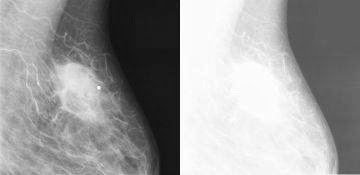
* Inconsistent image display. The lump visible on the left is almost invisible on the right.
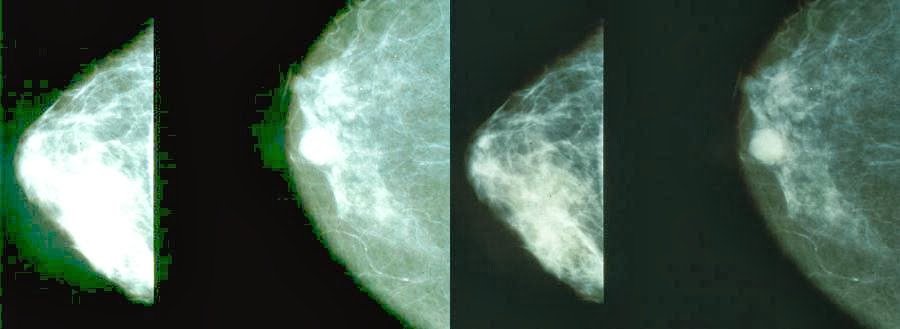
Since DICOM Part 14 was originally developed for grayscale displays, it may not be a universal solution for color medical monitors as well. So, what luminance response do you calibrate a color medical display to if you use it to read grayscale images? Or color and pseudo color images? To answer these questions, let’s take a look at the available options for luminance response calibration.
What Are the Options for Luminance Response Calibration?
Barten/DICOM
The DICOM Grayscale Standard Display Function specifies exactly what luminance or density level should be produced for a certain input value, based on the Barten curve, which maps the values into a range that is perceptually linear. This means that input values are mapped into a space that is perceived as linear by a human observer.
With the luminance response adjusted to the DICOM curve, the display presents more just noticeable luminance differences to the viewer, and achieve similarity in grayscale reproduction for various displays.
DICOM Part 14 calibration makes sure all gray levels are produced in equal distance for the standard observer. Obviously, this type of luminance response calibration was introduced for grayscale images.
Gamma
Gamma (gamma correction, gamma encoding) a nonlinear operation used to code and decode luminance. Gamma correction is defined by a power-law expression.
Gamma was originally developed to compensate for the characteristics of CRT displays. In CRT displays, the light intensity varies nonlinearly with the electron-gun voltage. Altering the input signal by gamma compression can cancel this nonlinearity, such that the output picture has the intended luminance. So, Gamma correction is a good option for a CRT monitor, or to reproduce a CRT display’s image.
CIE L*
CIE luminosity function is established by the Commission Internationale de l’Éclairage (CIE) to describe the average sensitivity of the human eye to lightness. So in a certain way it is similar to the DICOM curve, but CIE L* does not only describe the equal distance in gray shades, but also the equidistant reproduction of colors and color shades. Calibrating color displays to CIE L* is currently recommended by the DIN 6868-57 standard (a German standard, discussing performance of medical displays).
Rec. 709
This luminance function is part of the Rec. 709 standard, developed for high-definition TV.
Thus this standard is highly adapted to pictures in movement. High definition endoscopy devices should follow REC 709.
EPD
EPD aim curve is part of a standard for geospatial imaging displays by National Geospatial Intelligence Agency (NGA). According to this standard, luminance response must match the EPD curve to ensure equal probability of detection for every shade of gray and every detail.
sRGB
sRGB is a standard developed cooperatively by HP and Microsoft for the use on monitors, printers and the Internet.
sRGB uses a transfer function typical for CRT displays. This specification allowed sRGB to be directly displayed on typical CRT monitors of the time, a factor which greatly aided its acceptance.
The sRGB gamma can not be expressed as a single numerical value. The overall gamma is approximately 2.2, consisting of a linear (gamma 1.0) section near black, and a non-linear section elsewhere involving a 2.4 exponent and a gamma (slope of log output versus log input) changing from 1.0 through about 2.3.
This standard color space is widely used as a default color space for various image reproduction devices, like displays, printers, or scanners. sRGB uses luminance response, typical of CRT displays and is close to Gamma 2.4.
CIECAM02
Here luminance, among other characteristics of a monitor, is adapted according to the CIECAM02 color appearance model, developed by the CIE.
NTSC
National Television System Committee is an analog television standard that defines certain luminance response among other characteristics of a TV.
PAL/SECAM
This is a standard color encoding system for analog television, defining luminance response among other characteristics.
Why Is Calibrating Only Luminance not Enough?
This image shows how two monitors, calibrated to the same luminance level, display the same shade of gray. The luminance is the same on both images, but for the human eye the grays look totally different. This difference can be disturbing and interfere with the way the viewer perceives and interprets an image.

* The difference you see is caused by the different color temperature of the grays,
so even if you use the color display for reading grayscale images only, calibrating luminance to DICOM may prove insufficient. For the optimal performance of a color medical display, you need to calibrate both luminance response (Gamma) and color temperature of the monitor.
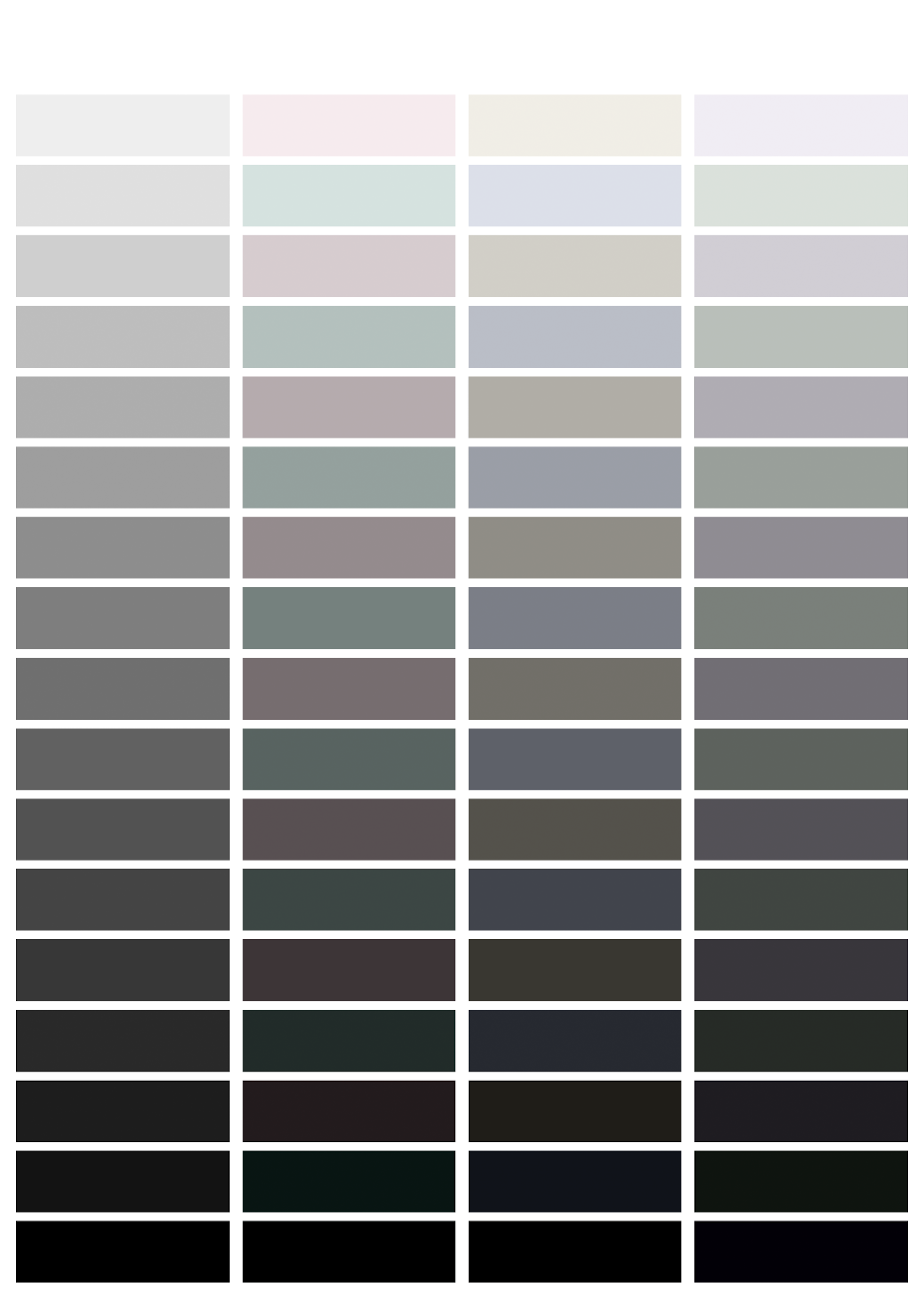
Even at similar luminance, differences in color can change the appearance of a gray patch. Evaluate color behavior using the acceptance criteria appropriate to the application and viewing conditions.
What Is the Right Choice?
As you see, there is no universal solution for any display and any purpose. If you use a color display for viewing grayscale images, the best option is to calibrate the display to DICOM GSDF and calibrate the color temperature, too.
For color and pseudo-color images, choose the luminance and color targets required by the viewing application and local QA plan. CIE L* and D65 are examples discussed here, not universal clinical targets.
For moving images, verify the signal and transfer function expected by the application; Rec.709 is one video-related target to consider where that workflow calls for it.
Wilmington, DE, USA, June 24, 2020
QUBYX Medical Solutions Inc. has announced FDA 510(k) clearance to bundle QUBYX PerfectLum with the Apple iMac 27” for a medical device upgrade.
With this move, QUBYX strengthens its presence in the important diagnostic, teleradiology, and medical display market with a product that will likely under-price most existing FDA approved medical monitors. This is the first Apple iMac diagnostic medical display to be offered to healthcare institutions.
QUBYX’s PerfectLum is a multi-platform, multilingual, full-featured, calibration system with remote management that significantly enhances display performance in all circumstances. More importantly, PerfectLum provides up-to-date industry-specific compliance with medical imaging
standards (Including NEMA DICOM part 14 GSDF). This is the first time that such industry-specific standards have been achievable on a Mac.
Apple has a long history of premium performance monitors and the current models are no exception, offering impressive specs – 500nits brightness, 5K with 5120 x 2880 resolution, P3 (wide color) and a billion colors.
QUBYX’s PerfectLum is a multi-platform, multilingual, full-featured quality assurance tool, with a remote management and cloud solution, that not only calibrates a primary or secondary medical display, but also performs acceptance and constancy tests to verify that displays consistently conform to such international regulations as: NEMA DICOM part 14, GSDF, AAPM TG-18, DIN 6868-57, DIN 6868-157, JESRA X-0093, IEC 62563-1 ACR and NYS/NYC Primary Diagnostic Monitor guidelines (NY PDM).
The PerfectLum Suite is the preferred medical display calibration and quality control solution used by hospitals, teleradiology companies, university health departments, and other medical facilities, worldwide. The integration of PerfectLum with the Apple 5K iMac 27”, creates a perfect pairing. Read more about PerfectLum
Marc Leppla, CTO at QUBYX, said:
“QUBYX shows again its capacity to significantly enhance display performance in any environment, including medical monitors, laptops, and commercial displays, while also reducing costs for medical institutions.”
About QUBYX
QUBYX is a software/hardware manufacturer providing new dimensions of image quality in the medical imaging industry and display calibration field.
For more information, visit: https://qubyx.com
Press Contact:
Marc Leppa CTO
QUBYX Medical Solutions Inc.


