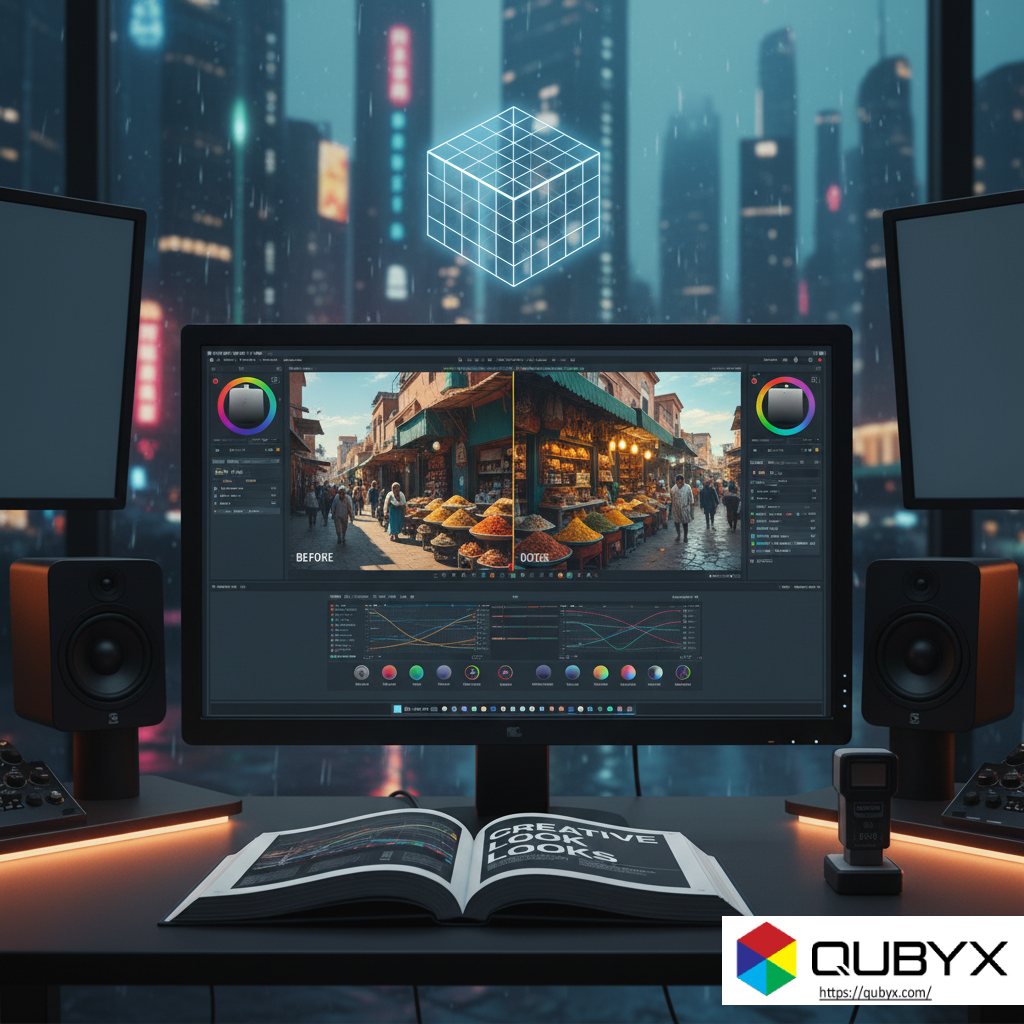
The QUBYX 3D LUT Generator is a powerful tool for color grading and display calibration. This guide will walk you through the process of creating and applying 3D LUTs using the software.
What is a 3D LUT?
A 3D LUT (Look-Up Table) is a file that transforms color values in an image or video. It’s essentially a set of instructions that tell your display or software how to remap input colors to output colors. This is crucial for maintaining consistent color across different devices and for achieving specific creative looks.
Why use QUBYX 3D LUT Generator?
QUBYX 3D LUT Generator offers a comprehensive suite of features for both technical and creative LUT creation. It allows for precise calibration, emulation of various color spaces, and the ability to craft unique visual styles.
Getting Started: Installation and Interface Overview
First, ensure you have QUBYX 3D LUT Generator installed on your system. Once launched, you’ll be greeted by an interface that might seem complex at first, but we’ll break it down.
- Source and Target: These sections define the input color space you’re starting with and the output color space you want to achieve.
- 3D LUT Grid: This visual representation shows how colors are being mapped.
- Controls and Adjustments: Various sliders, curves, and numerical inputs allow for fine-tuning the LUT.
- Preview Window: Essential for seeing the immediate effect of your adjustments.
Creating a Calibration LUT
A calibration LUT is designed to correct for display inaccuracies, ensuring your monitor displays colors as accurately as possible.
- Profiling Your Display: Before creating a calibration LUT, you’ll typically need to profile your display using a colorimeter or spectrophotometer and specialized software (like QUBYX’s own calibration solutions, or third-party tools). This generates a profile that describes your display’s characteristics.
- Loading the Profile: In QUBYX 3D LUT Generator, you’ll load this display profile as your “Target” profile.
- Generating the LUT: The software will then calculate a 3D LUT that corrects for your display’s imperfections, transforming incoming color signals to match the desired standard.
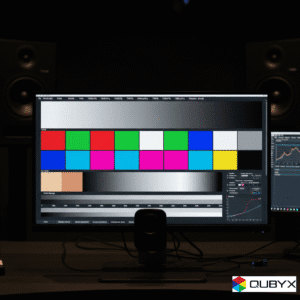
Here’s an example of a perfectly calibrated display showing a standard color chart:
Creating a Creative LUT
Creative LUTs are used to achieve specific visual styles, emulate film stocks, or create unique color grades.
- Select Source and Target: Start by defining your input (e.g., Rec.709, Log footage) and desired output (e.g., a stylized look, a different color space).
- Adjusting Colors: Use the various tools in QUBYX 3D LUT Generator to manipulate hue, saturation, luminance, and contrast. You can use:
- Color Wheels: For broad color adjustments.
- Curves: For precise control over tonal ranges.
- Matrix Adjustments: For fine-tuning color primaries.
- Preview and Refine: Constantly monitor the preview window to see the effects of your adjustments. Load reference images or video clips to ensure the LUT achieves the desired look across different content.
Imagine a scene before and after applying a dramatic creative LUT:
Before:
After:
Exporting Your 3D LUT
Once you’re satisfied with your LUT, you’ll need to export it in a compatible format. QUBYX 3D LUT Generator supports various formats, including:
- .cube: A widely supported format for 3D LUTs.
- .3dl: Another common format.
- Other specific formats for different software and hardware.
Applying 3D LUTs
The application of 3D LUTs varies depending on your workflow:
- In Software (e.g., DaVinci Resolve, Adobe Premiere Pro, Photoshop): Most professional video editing and color grading software allows you to import and apply 3D LUTs as an effect or a lookup table.
- On Hardware (e.g., Monitors, Production Switchers): Many professional monitors and video production devices have the ability to load and apply 3D LUTs directly, ensuring consistent color viewing throughout your pipeline.
Advanced Techniques
- LUT Stacking: Applying multiple LUTs in sequence to achieve complex looks (e.g., a calibration LUT followed by a creative LUT).
- Creating Lattices: Generating LUTs based on specific color science principles or industry standards.
- Profiling Projectors: Using the software to create LUTs for projector calibration.
This comprehensive guide should give you a solid foundation for mastering QUBYX 3D LUT Generator. Experiment with the different tools and features to unlock its full potential for your color grading and calibration needs.